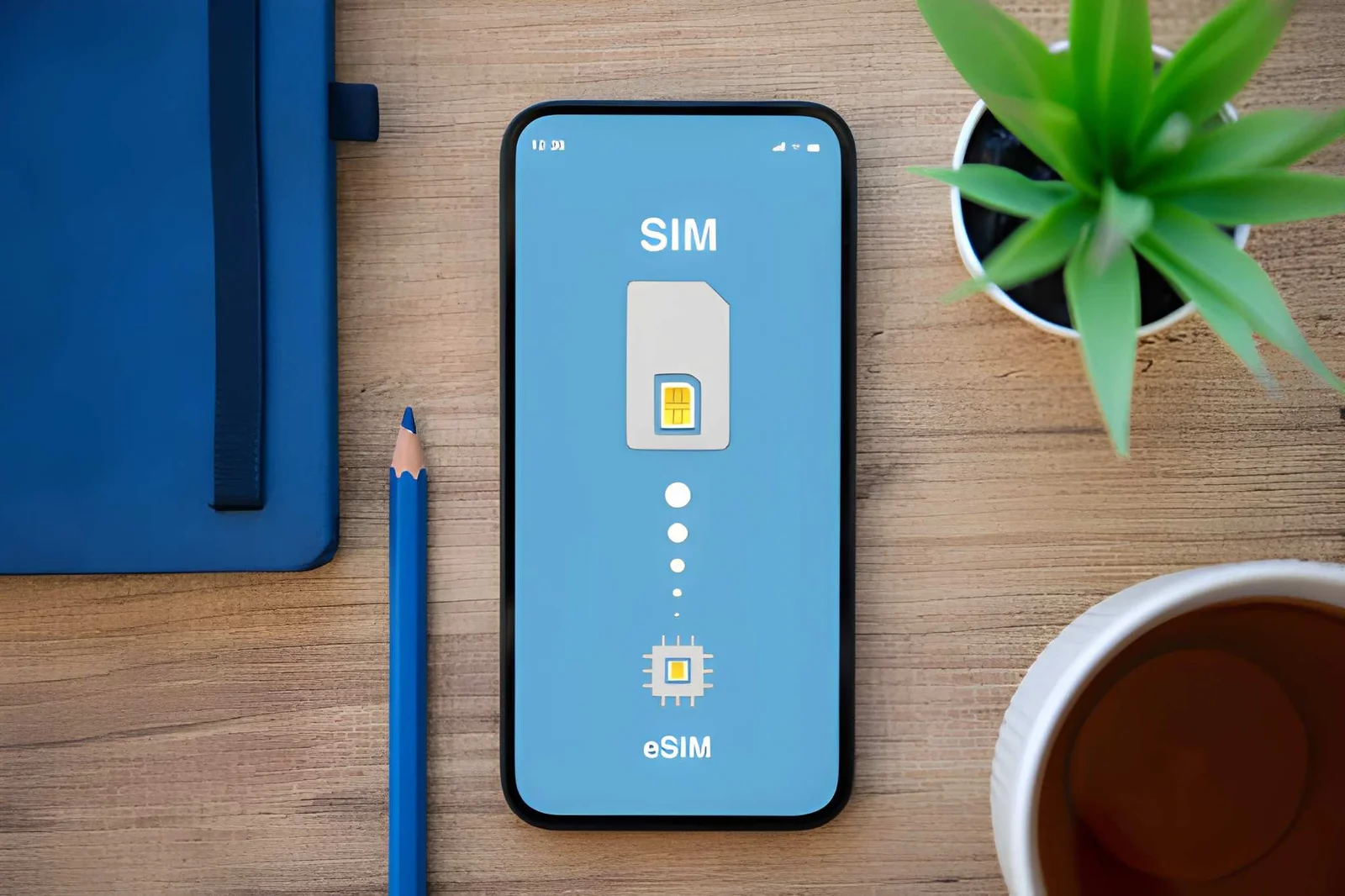
Editor’s Note: Every iPhone 16 supports dual eSIM, and US models are eSIM-only with no SIM tray at all. This guide follows Apple’s official documentation and GSMA standards, so each activation step matches your exact model and region. Pick your model below and you’ll be connected in under ten minutes.
The iPhone 16 is the first iPhone where eSIM isn’t just an option — for many buyers it’s the only option. US models ship without any physical SIM tray, and the whole lineup supports two active eSIMs at once. This guide is specific to the 16: what changed, what breaks, and how to fix it.
For the step-by-step activation menus (the same on iPhone 16 as any other iPhone), see the iPhone eSIM activation guide. For older iPhone models, start at the iPhone compatibility hub.
Does the iPhone 16 support eSIM?
Yes — every model in the lineup (iPhone 16, 16 Plus, 16 Pro, 16 Pro Max) supports eSIM. What differs is the physical SIM:
| Purchase region | Configuration | What it means |
|---|---|---|
| US, Canada, Japan, UAE | eSIM only, no tray | Every carrier must be an eSIM |
| Europe, UK, Southeast Asia, Australia | 1 nano-SIM + eSIM | Hybrid: home SIM + travel eSIM together |
| Mainland China | Dual nano-SIM, no eSIM | No eSIM hardware at all |
Traveling to China with a US-model iPhone 16? Local carriers won’t sell you an eSIM, so grab a global travel eSIM (like Roami) before departure — it reaches Chinese networks by roaming.
Which iPhone 16 models still have a SIM tray?
The shortest possible answer: the model number decides, not the size or color. Apple ships three hardware configurations of the iPhone 16 worldwide, and the tray’s fate is baked in at the factory. Here’s the full map, with the model numbers to look up in Settings > General > About > Model Number.
| Configuration | Regions | Model numbers | SIM situation |
|---|---|---|---|
| eSIM only | US, Canada, Mexico, Japan, Saudi Arabia, UAE, Puerto Rico, US Virgin Islands, Guam | iPhone 16: A3286, A3287 · Plus: A3290, A3291 · Pro: A3294, A3295 · Pro Max: A3298, A3299 | No physical tray at all — two active eSIMs is the only path |
| Hybrid (nano-SIM + eSIM) | Europe, UK, Southeast Asia, Australia, most of the world | iPhone 16: A3288 · Plus: A3292 · Pro: A3296 · Pro Max: A3300 | One physical SIM slot plus eSIM, so a home SIM and travel eSIM live together |
| Dual nano-SIM, no eSIM | Mainland China, Hong Kong, Macau | iPhone 16: A3289 · Plus: A3293 · Pro: A3297 · Pro Max: A3301 | Two physical SIM cards, zero eSIM hardware |
The nuance that trips people up: Canada and Japan joined the US in dropping the tray on the 16. If you bought an iPhone 16 in Toronto or Tokyo and still expect a SIM slot, it isn’t there — those are now eSIM-only markets. The A3287/A3291/A3295/A3299 models (Japan) and the US A3286/A3290/A3294/A3298 models are both tray-less.
To confirm yours in ten seconds: dial *#06#. An EID on screen means eSIM is present. A tray you can pop with a pin means it’s the hybrid model. Both a tray and no EID means it’s the China/HK dual-nano variant — eSIM won’t work on it.
Why Apple removed the SIM tray
Dropping the tray, reader, and spring mechanism frees internal space for a larger battery and cuts a potential point of failure. A fully digital line also removes the power overhead of driving a physical SIM reader, and users report 5–10% better battery life on eSIM-only iPhone 16 models. Security improves too: the eSIM lives on a dedicated eUICC chip, so a stolen phone can’t have its number swapped out to defeat Find My.
What’s new in iOS 18 for the iPhone 16
- More reliable Quick Transfer between iPhones, with clearer progress.
- A cleaner dual-eSIM view that shows which line handles data, voice, and SMS at a glance.
- Background carrier updates — no restart needed.
- A redesigned Add eSIM screen with better low-light guidance and a more obvious manual-entry button.
- Battery optimization for the A18 chip when two eSIMs are active.
Activating eSIM on iPhone 16
The menus are the same as any recent iPhone, so the full walkthrough lives in the iPhone eSIM activation guide. The iPhone 16 shortcuts that matter most:
- Carrier app is fastest — in Roami, Airalo, or a carrier app, tap “Install to this device” and the profile lands in under 30 seconds.
- Quick Transfer moves your existing eSIM from an old iPhone during setup — no carrier contact needed.
- QR or manual entry still works via Settings > Cellular > Add eSIM.
How to Fix Unable to Activate on iPhone 16
iPhone 16 owners most often hit “Unable to Activate” or a stuck “Activating…” screen. In order, try:
- Confirm Settings > General > About > Carrier Lock says “No SIM restrictions.”
- Make sure you’re on stable Wi-Fi, not cellular or airport Wi-Fi.
- Toggle Airplane Mode for 30 seconds, then off.
- If it’s still stuck, remove the pending profile and re-scan on a better network.
When the Quick Fixes Do Not Work
Those four steps solve most cases. When they don’t, here’s the complete ladder our support team actually works through — start at rung five:
- Check for a duplicate profile — Settings > Cellular and look for the same plan listed twice. Two half-installed copies fight each other; delete the older one.
- Install a carrier settings update — Settings > General > About will pop the prompt if one is pending. An outdated carrier bundle is a common “Unable to Activate” trigger.
- Update iOS — Settings > General > Software Update. Early iOS 18 builds had known eSIM-registration bugs that later point releases fixed.
- Reset network settings — Settings > General > Transfer or Reset iPhone > Reset > Reset Network Settings. This wipes Wi-Fi passwords but clears a corrupted cellular stack. Reconnect Wi-Fi afterward and retry.
- Confirm the eSIM hasn’t expired — a plan that’s past its validity window, or a QR code already used once, will never activate.
- Contact the provider — if every earlier rung fails, the issue is on the carrier’s SM-DP+ server, and they can re-push the profile.
If a specific error code appears (“Cellular Plan Cannot Be Added,” “Invalid QR code”) — or you get signal bars but no data — the error-by-error fixes, including APN values, are in the eSIM Deep Troubleshooting Guide.
Setting Up Dual eSIM on iPhone 16
The 16 keeps two eSIMs active at once — and on a US model there’s no physical SIM to fall back on, so both lines are eSIMs by default. This is how most travelers run a home line plus a data eSIM.
- Install the home line first. Use your carrier’s app, their QR code, or eSIM Carrier Activation (sign in with your carrier account during setup and the profile appears automatically).
- Install the travel eSIM second. Open Roami (or your provider’s app), tap Install to this device, and allow the prompt. Or scan the QR from your confirmation email.
- Label both lines. Settings > Cellular, tap each line, and use “Cellular Plan Label” to name them “Home” and “Roami Travel.”
- Point Cellular Data at the travel eSIM. Settings > Cellular > Cellular Data.
- Point Default Voice Line at home. This keeps calls, iMessage, and FaceTime on your regular number.
- Data Roaming ON for the travel line, OFF for home. The travel eSIM needs roaming to reach partner networks; the home line doesn’t, and leaving it off prevents accidental fees.
- Keep Allow Cellular Data Switching OFF. A brief signal dip could flip data to the wrong line and trigger a charge.
That’s it — two active eSIMs, one phone, no tray.
Why each dual-eSIM setting matters
The steps above set four switches, and each one has a reason. Cellular Data → travel eSIM sends your traffic over the data plan you actually paid for, instead of home-line roaming. Default Voice Line → home keeps calls, iMessage, and FaceTime on your regular number so contacts and 2FA texts still find you. Data Roaming ON for the travel line only is what lets the travel eSIM reach its partner networks abroad — while leaving the home line’s roaming off prevents surprise charges. And Allow Cellular Data Switching OFF matters most of all: with it on, a momentary signal dip can silently flip your data to the wrong line mid-session.
Transferring your eSIM to iPhone 16 during setup
Upgrading to a 16 and want your old eSIM to come with you? Do it during the initial setup, before you’ve finished configuring the phone.
- Turn on the new iPhone 16 and bring it near your old iPhone (both running iOS 16+).
- When the Quick Start screen appears on the old phone, follow the prompts to set up the new device.
- On the new phone, when you reach the cellular step, choose Transfer eSIM from nearby iPhone.
- Keep both phones close, with Bluetooth and Wi-Fi on, until the transfer finishes — usually one to two minutes per line.
A few notes specific to the 16. If you skipped it during setup, you can still do it later: Settings > Cellular > Add eSIM > Transfer from Nearby iPhone. If the old iPhone is sold, lost, or reset, Quick Transfer can’t run — contact your carrier to re-issue the eSIM instead. And if the transfer lands but shows “No Service,” delete the profile from the old phone first, because some carriers require the old copy to be released. Cross-platform moves (Android → iPhone) go through your carrier, not the Settings app — see the transfer guide.
iPhone 16 vs iPhone 15 eSIM Changes
| Feature | iPhone 15 | iPhone 16 |
|---|---|---|
| eSIM support | Yes | Yes |
| Dual active eSIM | Yes | Yes (more stable) |
| US eSIM-only | Yes | Yes |
| Quick Transfer | Yes | Improved in iOS 18 |
| Carrier updates | Restart needed | Background |
| Battery | Good | Better (A18 optimizations) |
| Security | eUICC | eUICC + enhanced anti-tampering |
Upgrading from a 15 is seamless — your existing eSIMs move over with Quick Transfer during setup.
iPhone 16 vs 15 vs 14 eSIM Differences
If you’re coming from an older phone, here’s how the last three generations stack up on the eSIM-specific points.

| Feature | iPhone 14 | iPhone 15 | iPhone 16 |
|---|---|---|---|
| eSIM support | Yes | Yes | Yes |
| Two active eSIMs | Yes (iPhone 13+) | Yes | Yes |
| US model tray | eSIM only | eSIM only | eSIM only |
| Other eSIM-only markets | — | — | Canada, Japan, Mexico, UAE, Saudi Arabia |
| SIM tray elsewhere | Kept | Kept | Kept (hybrid) |
| Quick Transfer | Yes (iOS 16) | Yes | Yes, improved in iOS 18 |
| Carrier updates | Restart needed | Restart needed | Background |
| 5G / mmWave | Yes | Yes | Yes (A18, more efficient) |
| Battery with dual eSIM | Good | Good | Better (A18 optimizations) |
The headline: eSIM capability has been mature since the 14, but the 16 is where eSIM-only stopped being a US quirk and became a global default. If you’re moving up from a 14 or 15, the only real change to plan around is that more markets now drop the physical tray — so check your region before assuming you can still pop in a local SIM.
iPhone 16 eSIM 5G and mmWave Support
A common worry: does going eSIM-only cost you 5G? No. The eSIM is just the credential — it has zero effect on which radio the phone uses. Every iPhone 16 model supports 5G, and the US models additionally support mmWave, and both work fine over eSIM.
What actually matters for 5G roaming:
- Your provider must offer 5G in your destination. Roami and the major travel-eSIM brands offer 5G in a growing list of countries; in others you’ll connect on LTE, which is still fast enough for anything but 4K streaming.
- The local network must support it. Some partner networks restrict 5G roaming to their own subscribers.
- Your settings must allow it. Settings > Cellular > Cellular Data Options > Voice & Data, and choose 5G Auto or 5G On. There’s also a 5G Standalone toggle that some carriers enable.
- mmWave is a US-model feature, and even then it’s mostly a US-deployment technology — abroad you’ll be on sub-6 GHz 5G or LTE, which is why roaming mmWave almost never comes up.
One trade-off to know: 5G mmWave runs hotter and draws more battery than LTE, though the A18 chip handles it more efficiently than the 15 did. For most travelers, leaving Voice & Data on 5G Auto is the right call — it uses 5G when it’s fast and drops to LTE to save battery when it isn’t.
Enterprise and MDM deployment
For IT teams rolling out iPhone 16 fleets, eSIM removes the SIM-swap grunt work. Confirm your carrier supports eSIM Carrier Activation (zero-touch install during DEP/Apple Business Manager enrollment), ask for the SM-DP+ URL and provisioning capacity up front, and use MDM to push profiles remotely. The AllowESIMModification restriction blocks users from adding or removing eSIMs, and RefreshCellularPlansCommand re-syncs plans. If activation stalls on a managed device, check that the corporate firewall allows outbound traffic to the carrier’s SM-DP+ server.
Two iPhone 16-specific points for admins. First, A18 + iOS 18 makes dual eSIM the norm — a US-model fleet has no physical SIM at all, so budget for two eSIMs per device (a carrier line plus a fallback data eSIM) from day one. Second, iOS 18 added more granular cellular-management commands, so pin your MDM server to the latest release before deploying — older MDM profiles that predate iOS 18 sometimes fail to push eSIMs to a 16 out of the box.
What this page doesn’t cover
- eSIM vs physical SIM as a general concept → What is eSIM?
- Cross-platform transfer (iPhone ↔ Android) → eSIM transfer guide
- Full eSIM device and carrier lists → compatibility list
Frequently Asked Questions
Why is my iPhone 16 stuck on “Activating”? Usually unstable Wi-Fi or a busy activation server. Airplane Mode for 30 seconds, then off; if still stuck, delete the pending eSIM and retry on a stronger network. Don’t delete an active plan mid-trip.
I have a US-model iPhone 16. Can I use a physical SIM with an adapter? No — the US model has no SIM tray hardware at all. eSIM is the only path.
I have a US-model iPhone 16 and I’m traveling to China. What do I do? Buy a global travel eSIM (like Roami) before you leave. Chinese carriers don’t issue eSIMs to foreign visitors, so a roaming travel eSIM is your only option.
Is iPhone 16 5G roaming not working? Check Settings > Cellular > Cellular Data Options > Voice & Data is on 5G Auto or 5G On, and confirm your eSIM provider offers 5G roaming in your destination.
Does deleting an eSIM cancel my plan? No — it only removes the profile from the phone. Cancel the plan with your carrier separately. Travel eSIMs aren’t refunded for unused data.
Do restore errors 4013/4014 mean my eSIM is broken? No — 4013 and 4014 are hardware/firmware restore errors, not eSIM issues. Try another cable and port, update your Mac or iTunes, then contact Apple if it persists.
Does dual eSIM drain the iPhone 16 battery faster? Minimally. Two active lines use a bit more power, but the A18 chip is optimized for dual-SIM, and a single eSIM draws slightly less than a physical SIM (no reader to power).
Does my iPhone 16 support personal hotspot on a travel eSIM? Most travel eSIM plans include hotspot, and the A18 chip keeps tethering cooler. Check your plan — some budget options restrict it.
Which iPhone 16 models still have a physical SIM tray? The hybrid models sold in Europe, the UK, Southeast Asia, Australia, and most of the world keep one nano-SIM slot. The US, Canada, Mexico, Japan, Saudi Arabia, and UAE models are eSIM-only, and China/Hong Kong models have dual nano-SIM with no eSIM. Check your model number in Settings > General > About.
Can I run two travel eSIMs at once on my iPhone 16? Yes — the 16 supports two active eSIMs simultaneously, so you can keep a home eSIM and a travel eSIM, or two travel eSIMs for a multi-country trip. Switch which one carries data in Settings > Cellular > Cellular Data.
Does mmWave work on a travel eSIM? On a US-model iPhone 16, mmWave works regardless of eSIM, but mmWave is a US-deployment technology — abroad you’ll connect on sub-6 GHz 5G or LTE, which is normal and expected.
👉 Want to test it on your iPhone 16? Claim a free eSIM and try the whole flow.
Then browse our destination pages:
Based on Apple and GSMA documentation. Actual features may vary depending on carrier policies, region, and device model.