Taiwan eSIM on iPhone: Setup, and the Model Trap

Roami Team
Roami offers reliable eSIM plans, serving over 1 million travelers annually, and supports automatic local network switching to help travelers stay connected globally.
📑 Table of Contents
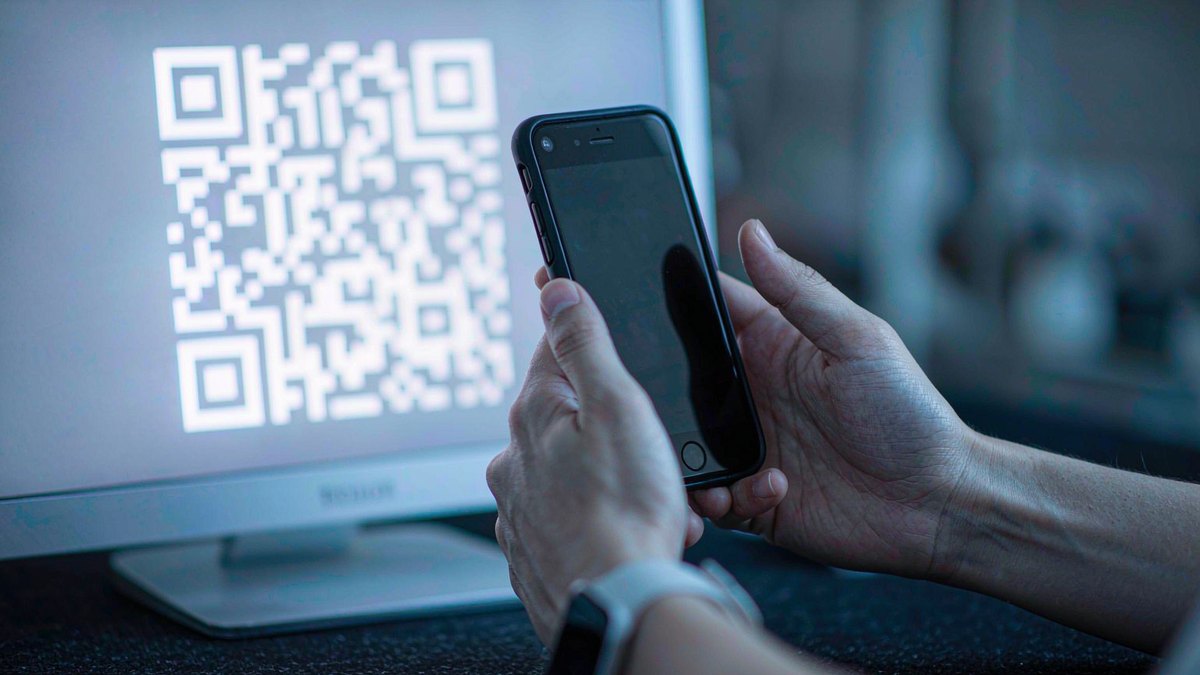
Installing a Taiwan eSIM on an iPhone takes about ninety seconds. Diagnosing why it did not work can take an hour, and in a meaningful share of cases the answer is that the phone cannot do it at all — not because eSIM is broken, but because the handset was built for a market where the hardware is disabled.
That second group is larger than the market admits. Apple ships different cellular hardware to different regions, and some of those variants have no eSIM capability whatsoever, on any firmware, for any carrier. A traveller holding one of those phones will read every troubleshooting guide on the internet and conclude the eSIM is faulty. It is not. The phone is.
So this page does both halves. The six-step install, with the settings paths that actually exist in current iOS, and the model check that should happen before you buy anything. Then the four failures that account for almost every “the eSIM installed but nothing works” report, in the order worth checking them.
Six steps, and step three is where people stall
The install is genuinely simple, and it is simple in a way that hides one decision most users get wrong.
Step 1: confirm the phone is carrier-unlocked. Settings → General → About, scroll to Carrier Lock. It must read “No SIM restrictions”. A phone bought on an instalment plan from a carrier may be locked to that carrier and will refuse a foreign profile with a generic error.
Step 2: buy the plan while you have stable Wi-Fi. The profile arrives as a QR code by email, plus an activation code in most cases. This is a download of a few hundred kilobytes; do it at home, not in an arrivals hall with one bar of airport Wi-Fi.
Step 3: install from Settings, not from the QR photo saved in your camera roll. Open Settings → Cellular (labelled Mobile Service in some regions) → Add eSIM. iOS offers three routes: transfer from a nearby iPhone, use a QR code, or enter the details manually. Choose QR code and scan from the email on another screen — or, if you only have one device, choose “Enter Details Manually” and type the SM-DP+ address and activation code. Scanning a QR code out of your own photo library is the step where people stall, because iOS cannot scan its own screen.
Step 4: let it provision, then label it. Provisioning takes fifteen to sixty seconds and shows as “Activating”. When it finishes, rename the line to Taiwan so you can tell the profiles apart later: Settings → Cellular → the new line → Cellular Plan Label.
Step 5: do not enable data roaming yet. Leave the new line switched off until you land. On a travel eSIM, enabling it at home can start the validity clock before your trip begins.
Step 6: on landing, enable the line, set it as the data line, and turn on data roaming for that line only. Settings → Cellular → Cellular Data → choose the Taiwan line. Then tap the Taiwan line and enable Data Roaming. Your home line stays on for calls and SMS, with its own data roaming off.
Step six is where the product works or does not. A travel eSIM is a guest on a Taiwanese network, which means it must roam. Data roaming off is the single most common cause of an installed profile that shows no service.
Taiwan eSIM setup iPhone walkthrough, screen by screen
Knowing the path is not the same as knowing what you will see, and the unfamiliarity of the eSIM flow is what makes people think something has gone wrong. Here is the sequence as it appears on screen.
Settings → Cellular. On a phone with one physical SIM and no eSIM, this screen shows one line under “SIMs”. Tap Add eSIM and iOS asks how you want to add the plan: transfer from a nearby iPhone, use a QR code, or enter details manually. Manual entry is the option that exists when the other two fail, and it is not a last resort — it is the most reliable route when you have one device.
The QR scanner. Point it at the code in the email, on another screen. It reads quickly, and a code that will not read is almost always a photo of a screen rather than the original. If you are scanning from a laptop, zoom the code to at least a third of the screen and hold the phone steady about 15 cm away.
The “Checking” state. After the scan, iOS contacts the provider’s server and displays a spinner with a message about activation. This takes fifteen to sixty seconds. Do not lock the phone, do not close Settings, and do not press the home gesture. A failure here produces a specific message, and the message tells you which of the four checks to run.
Naming the plan. iOS asks for a label. This is cosmetic but not pointless: with three profiles installed, “Taiwan” is the only thing standing between you and a very confusing Settings screen three days later.
What “Turn On This Line” does. After installation the line appears with a toggle. Leaving it off is correct at home. Turning it on at home is not fatal, but on some plans it starts the validity clock, which is why the guides say to leave it alone.
The first attach. On landing, the status bar shows two signal indicators. The Taiwan one may read “No Service” for up to two minutes while it negotiates with the local network. If it still reads No Service after five minutes with data roaming on and the line enabled, the profile is not attaching and the checks below apply.
The whole flow is documented in Apple’s own cellular settings notes, which are worth a skim if the screen you are looking at does not match any of the above. The eSIM format itself is a GSMA specification, which is why the installation steps are broadly the same across brands even when the apps differ.
Which iPhone models can install a Taiwan eSIM, and which cannot
Every iPhone from the XS, XS Max and XR onward supports eSIM, which covers 2018 and later. That statement is true globally and false in specific markets, which is the contradiction that trips people up.
| iPhone generation | eSIM support in most markets | Notable exceptions |
|---|---|---|
| XS, XS Max, XR (2018) | Yes | Mainland China and Hong Kong, China variants used dual physical SIM |
| 11 series (2019) | Yes | Mainland China variant has no eSIM |
| 12, 13, 14, 15, 16 series | Yes | Mainland China variant has no eSIM; US variant of 14 and later has no SIM tray |
| SE (2nd and 3rd gen) | Yes | Check the model number; some regional variants differ |
| 17 series | Yes | Mainland China variant is dual physical SIM, no eSIM |
| 17e, iPhone Air | Yes | Mainland China variants are eSIM-capable, which is new for that market |
| 18 Pro and Pro Max | Yes | eSIM-only in 12 markets; dual physical SIM in mainland China |
The rule that matters for a traveller: the region the phone was sold in decides whether eSIM exists in the hardware, not the model year and not the iOS version. Apple’s own cellular and eSIM documentation lists the variants, and the compatibility list on this site filters by model.
How to check your own iPhone in twenty seconds
Dial *#06#. If the phone has eSIM hardware, the response includes an EID — a 32-digit identifier alongside the IMEI. No EID means no eSIM, full stop, and no workaround exists.
The second check is the model number. Settings → General → About → Model Number. A part number ending in a region code tells you the market: LL/A for the United States, ZA/A for Singapore, ZP/A for Hong Kong, China and Macao, China, J/A for Japan, CH/A for mainland China. The first letter of the part number also matters — an M prefix is a retail unit, an N prefix is a replacement unit, an F prefix is refurbished — but the region suffix is the one that predicts eSIM support.
The mainland China and Hong Kong, China variants with no eSIM
This is the trap worth its own section, because it silently affects a large number of travellers and almost no English-language guide mentions it.
Apple builds different cellular hardware for different markets to satisfy local carrier requirements. For several generations, the mainland China variants shipped with two physical nano-SIM slots and no eSIM hardware at all. The Hong Kong, China and Macao, China variants followed the same approach for many models. Korea took a different route on some generations, with a single physical slot plus eSIM.
The consequence for a Taiwan trip: a phone bought in those markets may have no eSIM capability, which makes every travel eSIM in the world uninstallable on it. There is no software fix, no firmware update, and no carrier that can enable it. Third-party hardware modifications exist and are not something to attempt on a phone you depend on.
Conversely, a mainland China variant that does support eSIM can open an international travel profile, and this has become more common on recent models. The direction of the restriction is asymmetric and changes by generation, so the dial code check is the only reliable answer.
Practical advice: run *#06# before you buy the plan, not after. If there is no EID, buy a physical SIM at Taoyuan instead, and read the counter comparison rather than any eSIM guide.
Where iOS 17 and iOS 18 put the setting
Menu labels moved between releases, and following a guide written for the wrong version is a reliable way to conclude that a setting does not exist.
| Task | iOS 17 and earlier | iOS 18 and later |
|---|---|---|
| Add a plan | Settings → Cellular → Add eSIM | Settings → Cellular → Add eSIM |
| Rename a line | Settings → Cellular → line → Cellular Plan Label | Same path |
| Choose the data line | Settings → Cellular → Cellular Data | Settings → Cellular → Cellular Data |
| Data roaming per line | Settings → Cellular → line → Data Roaming | Same path |
| See which network you are on | Settings → Cellular → line → Network Selection | Same path |
| Check carrier lock | Settings → General → About → Carrier Lock | Same path |
Two regional differences matter more than the version. On phones sold in some markets the Cellular menu is labelled “Mobile Service”, and “Cellular Data” becomes “Mobile Data”. If a guide tells you to open Cellular and your phone has no such item, look for Mobile Service.
There is also a quick-transfer route that only works between iPhones: during setup, or from Settings → Cellular → Add eSIM → Transfer from Nearby iPhone, iOS can copy a plan from an old handset. It needs both phones nearby, the same Apple Account, and carrier support for the transfer. It is convenient for a domestic upgrade and unreliable for a travel eSIM, because most travel eSIM sellers do not support profile transfer.
The five iPhone settings that decide your data bill
The install is one decision. These five settings are what determine whether the trip costs what you expected or three times as much.
Cellular Data line. Already covered, and the most expensive to get wrong. Settings → Cellular → Cellular Data.
Allow Cellular Data Switching. Off for a travel eSIM. This is the setting that lets iOS quietly move traffic to your home line when the Taiwan signal is weak, and on a home plan with roaming charges that is a bill you did not plan.
Wi-Fi Assist. Off. Settings → Cellular, scroll to the bottom. Wi-Fi Assist sends traffic over mobile data whenever Wi-Fi is weak, which is exactly the situation in a hotel with a bad router. On a metered plan that is a silent leak.
Low Data Mode. On, if the plan is small. It suppresses background refresh and automatic downloads on that line without affecting foreground apps.
Background App Refresh. Per app. Settings → General → Background App Refresh. Photo sync, cloud drives and podcast apps are the three that move gigabytes without asking. Turn them off for the trip and your allowance behaves twice as well.
Two more worth knowing about but not changing: Personal Hotspot is where tethering is enabled, and it counts against the same allowance as everything else. And AirDrop, despite the name, does not use mobile data at all, which makes it the cheapest way to move photos between two iPhones on a trip with a tight cap.
Set the data line, or the phone will use your home plan
The most expensive configuration error in this whole process is not a failed install. It is a successful install where the iPhone keeps using the home line for data, so the traveller pays roaming rates for a week while a perfectly good Taiwan plan sits idle.
iOS decides data routing in one place: Settings → Cellular → Cellular Data. Whatever is selected there carries all mobile data, including hotspot. Two things to check after landing.
The Taiwan line is selected for Cellular Data. If it still shows your home line, every megabyte is being billed at roaming rates.
Allow Cellular Data Switching is a decision, not a default. This toggle lets iOS move data to the other line when the preferred one has poor coverage. On a dual-SIM setup with a home line that charges for roaming, leaving it on means a weak Taiwan signal can silently route traffic to your home carrier. For a travel eSIM, turn it off. The Taiwan plan is the one you bought for this.
One more: the default voice line should stay as your home line if you want to keep receiving calls and SMS on your own number. Changing it to the Taiwan line moves your outbound calls to a data-only profile, which cannot place them.
Turn on VoLTE, because Taiwan has had no 3G since June 2024
Taiwan switched off its 3G network nationwide on 30 June 2024, following 2G in 2017, a shutdown the National Communications Commission coordinated with all three carriers. There is no legacy network to fall back to for a voice call, which changes what a misconfigured iPhone can and cannot do.
Two settings follow.
VoLTE must be on. Settings → Cellular → the line → Voice & Data, or on newer iOS under the same line’s options. If VoLTE is off, or the carrier profile does not enable it, voice calls fail even with full signal bars. This matters most for emergency calls: 110 for police, 119 for fire and ambulance, and 112, which routes to emergency services on any reachable network with no SIM and no credit.
5G Auto is the right default. Under Voice & Data, the options are 5G On, 5G Auto and LTE. 5G Auto drops to LTE when 5G is weak, which is what you want on a tourist plan with a data cap: 5G burns through an allowance faster than LTE for the same tasks, and Auto stops the phone clinging to a marginal 5G cell.
The carrier guide’s note applies here too: a travel eSIM roaming onto a Taiwanese network inherits whatever voice capability the wholesale agreement includes, which is usually none. A data-only profile cannot make calls regardless of the VoLTE setting, and the setting only matters if you are on a local prepaid line issued by a carrier.
When the same profile works on one iPhone and fails on another
Couples and families hit this constantly: one phone installs the plan without complaint, the other refuses it, and the plan is blamed. The plan is almost never the problem.
Five differences explain nearly all of it.
One phone is older than eSIM. An iPhone 8 or X has no eSIM hardware. The XS and XR were the first with it, and the SE range is mixed by generation.
One phone was sold in a different market. Two identical-looking iPhone 11 handsets can behave differently because one has eSIM hardware and one does not, depending on the region it was sold in. This is the single most common explanation for a failure that seems arbitrary.
One phone is carrier-locked. A handset bought on an instalment plan may be locked, and a locked phone refuses a foreign profile with a message that does not mention locking.
One phone is running an old iOS. Basic eSIM support arrived in iOS 12.1, but the settings paths assumed by every current guide need a much later release, and some profiles require one.
One phone already has two active eSIM profiles. Recent iPhones hold several profiles but only activate two lines at a time. A phone already running a home eSIM plus a work eSIM may refuse a third active line, and the fix is to disable one rather than delete it.
The diagnostic is the same in every case: run *#06# on the failing phone and compare the EID with the working one. If one returns an EID and the other does not, the difference is hardware, and the answer is a physical SIM.
Buying at home versus buying in Taipei, costed
The purchase can happen in two places, and the trade is not obvious from the product pages.
Buying at home, before departure. You pay in your own currency, your card works, the QR code arrives in an email you can search for later, and you have days rather than minutes to fix an installation problem. The cost is that the validity clock may start earlier than you want, and that a plan bought three weeks ahead is priced at whatever the rate was three weeks ago.
Buying in Taipei, after arrival. You need Wi-Fi to complete the purchase, which means the airport’s free network or a hotel. You pay in a foreign currency at whatever your card charges. And if the install fails, you are troubleshooting in an arrivals hall with no other connection. The advantage is that the validity window definitely covers the trip, and that you can change your mind about the plan size once you see how much you are actually using.
The hybrid that most experienced travellers use. Buy a small plan before departure — enough for two days of maps and messages — and top up or buy a second plan from the hotel once you know your real usage. It costs a little more than one well-chosen plan and removes both failure modes: you arrive connected, and you are not committed to a size you guessed.
One specific warning about buying in Taipei: do not buy from a carrier’s retail counter expecting an eSIM for a visitor. The carrier prepaid eSIM requires two documents and registration, which is a different product from a travel eSIM, and the counter will not sell you the latter.
How to buy an eSIM in Taiwan when you are already there
The online purchase takes four minutes and works from anywhere, including a hotel room in Taipei. The constraint is not location; it is hardware and payment.
Buying from inside Taiwan works fine. The profile is delivered by email, the QR code is issued at purchase, and activation happens when the phone attaches to a local network. There is no geo-restriction on purchase. What you cannot do is activate before you have a signal, so if you land without data, buy using the airport’s free Wi-Fi, install, and you are connected in two minutes.
Payment is the usual blocker. Most international sellers take cards and some take PayPal. A card that triggers a fraud block on a foreign merchant at 23:00 is a problem you cannot solve at a counter. If you are buying mid-trip, buy from the same brand you used before, so the transaction pattern is familiar.
Do not buy a carrier’s own prepaid eSIM online from abroad. Taiwan’s carriers issue prepaid eSIMs at counters against two documents. The online purchase route for a Taiwanese number does not exist for a visitor, which the number guide explains in full.
Check the validity start before you pay. Some sellers start the clock at purchase, some at installation, some at first network attach. In Taiwan the last of those is the norm, and it is the one you want.
What the QR code does that a screenshot cannot fix
An eSIM profile is delivered as a provisioning token that is consumed on first install. Three consequences follow, and all three are irreversible from the handset.
The QR cannot be scanned twice. Once consumed, the same code returns an error on any device, including the one that already installed it. If you want a backup, screenshot it — but understand that the screenshot is a record, not a working spare.
Removing the plan deletes the token. Settings → Cellular → the line → Delete eSIM. That is a deletion, not a reset, and it frees nothing. The plan is gone and the only route back is support.
Erasing the phone does not preserve the profile. Restoring an iPhone from an iCloud or Finder backup brings back apps and settings but not the carrier profile, because the token is not part of the backup. This is the expensive version of the mistake: a factory reset mid-trip on a carrier-issued prepaid eSIM means a branch visit and NT$300 for a re-issue.
If a plan will not install, the safe sequence is: check the EID exists, check Carrier Lock, check iOS version support, try manual entry with the SM-DP+ address and activation code, and only then contact support. The activation error guide walks the same order with the exact messages iOS returns.
What dual-SIM actually costs in battery
Dual SIM is not free, and on a travel day it is worth knowing where the cost lands.
Two active lines means two radios maintaining registration, two paging cycles and, if both are enabled for data, two sets of background traffic. In practice:
| Configuration | Typical extra drain | What it buys you |
|---|---|---|
| One line active, other off | None | Nothing; the off line cannot receive SMS |
| Two lines, one data line | 3–8% per day | Home number stays reachable for SMS and calls |
| Two lines, data switching on | 8–15% per day | Automatic fallback, and unpredictable roaming charges |
| Two lines plus hotspot | 20%+ per day | Shared data, and a phone that may not last the evening |
The middle option is the one to use. Keeping the home line enabled for SMS and the Taiwan line as the sole data line costs a few per cent a day and preserves the authentication codes most travellers actually need.
Three settings reduce the cost further. Turn off Wi-Fi Assist under Settings → Cellular, which sends traffic to mobile data when Wi-Fi is weak — on a metered Taiwan plan that is money. Set Low Data Mode on the Taiwan line if the plan is small. And turn off background app refresh for the apps that sync large files, which is where most silent consumption comes from.
Transferring a Taiwan eSIM to a new iPhone
If you upgrade mid-trip, the plan does not travel with the SIM, because there is no SIM. Two routes exist and only one is reliable.
eSIM Quick Transfer moves a profile between iPhones running recent iOS, with both devices nearby and signed into the same Apple Account. It requires carrier or provider support, and most travel eSIM sellers do not support it. When it works, it takes a minute; when it does not, it fails without a useful error.
The reliable route is a reissue. Contact the provider, explain the device change, and ask for a new QR code. For a travel eSIM this is usually a goodwill replacement or a small fee; for a Taiwanese carrier prepaid line it is NT$300 after the free first conversion. Either way, do not delete the profile from the old phone until the new one is working.
The practical advice for a trip: do not change phones in the middle of one. If you must, do it before you leave, so the paperwork happens at home rather than in a hotel lobby.
Nine things that stop an install, in the order to check them
Work down this list rather than guessing; the causes are ordered by frequency, and the first four account for the overwhelming majority.
- No EID. Dial
*#06#. No EID, no eSIM, and the model region is the reason. - Carrier Lock is not “No SIM restrictions”. A locked phone refuses foreign profiles.
- The QR was already consumed. Reinstall attempts fail silently; ask support for a reissue.
- Data roaming is off on the Taiwan line. The profile attaches but carries no data.
- The Taiwan line is not the data line. The phone uses the home plan and bills you for roaming.
- The APN is blank. Rare on iOS, possible on some profiles; enter it manually if the provider specifies one.
- iOS is too old. eSIM needs iOS 12.1 or later for basic support, and the current Settings paths assume a recent release.
- The phone is in a coverage hole. Taiwan’s mountain roads and some east-coast stretches have thin coverage on all three networks, and no setting fixes geography. The network-by-network comparison shows where each carrier thins out.
- The provider issued a region-locked plan. Rare, but a Taiwan-only profile bought for a phone still registered in another region can fail to provision; the fix is a support ticket.
The FAQ on the vendor side covers the generic install path if any of the above left you unsure which settings screen you are looking at.
What a Taiwan eSIM will not do on an iPhone
The features an eSIM lacks are consistent across brands and worth knowing before you plan around them.
It will not give you a Taiwanese number. No international travel eSIM does. Calls and SMS on a Taiwan-only profile do not exist, which is why the number question has its own page. The only iPhone setup that produces a +886 line is a carrier prepaid eSIM bought at a counter with a passport and a second document.
It will not place ordinary phone calls. With the Taiwan line as the data line and the home line enabled, outbound calls go through your home carrier at roaming rates. If you want to call a Taipei restaurant, use LINE, WhatsApp or Skype over the Taiwan plan’s data.
It will not receive SMS to shortcodes. Many banks and payment services send codes from short numbers, which some roaming configurations drop. This is a home-line issue rather than a Taiwan eSIM issue, but it is the failure that most surprises people who rely on codes.
It cannot be topped up at a Taiwan carrier counter. Chunghwa, Taiwan Mobile and FarEasTone cannot add data to a foreign profile. Top-ups, where offered, happen in the seller’s app in the seller’s currency.
It cannot be shared to a second device as a SIM. You can share the data by hotspot, which burns the allowance faster, but you cannot move the profile. An eSIM is bound to one device.
It cannot be moved to Android. Cross-platform transfer exists in a limited form on some newer devices with carrier support, and it is not something to count on for a travel plan.
It cannot be repaired by a factory reset. Covered above, and worth the repetition: a reset removes the profile permanently. The plan is not in the backup.
None of these is a flaw. They are the boundaries of the product, and every one of them is a consequence of the same trade: no registration, no queue, no number, no local account. The plan comparison shows which sizes are available, and what unlimited means here explains the caps before you pick one.
What iPhone owners ask about Taiwan eSIMs
Can I use a Taiwan eSIM on any iPhone? On any iPhone from the XS, XS Max and XR onward, provided the model was sold in a market where Apple enabled eSIM. Mainland China variants of several generations have no eSIM hardware, and no workaround exists.
Which eSIM iPhone Taiwan buyers should avoid?
Any handset whose *#06# screen shows no EID. That covers mainland China variants from the XS era through the 16 series, and some Hong Kong, China and Macao, China units. Check before paying for a plan.
Will an iPhone eSIM Taiwan plan install on a phone bought in Hong Kong, China? Depends on the generation. Recent Hong Kong, China models ship with one physical slot plus eSIM, while several earlier generations were dual physical SIM with no eSIM. The EID check is the only reliable test.
Is the Taiwan eSIM iPhone installation different from any other country? No. The profile mechanics are identical everywhere; what differs in Taiwan is the network side — no 3G fallback, so VoLTE must be enabled for voice calls.
Is a Taiwan eSIM setup iPhone-only, or does it work on Android too? It works on Android and iPad as well. The Settings paths differ, and Android handsets sold in mainland China are more likely to have eSIM disabled than their international equivalents.
How to buy eSIM in Taiwan once you have landed? Connect to airport or hotel Wi-Fi, buy from any international seller, and install on the spot. Activation starts when the phone attaches to a Taiwanese network, usually within a minute of enabling the line.
How do I check if my iPhone supports eSIM?
Dial *#06#. An EID in the response means the hardware is present. Also check Settings → General → About → Carrier Lock for “No SIM restrictions”.
How do I install a Taiwan eSIM on iPhone? Settings → Cellular → Add eSIM → Use QR Code, or Enter Details Manually with the SM-DP+ address and activation code. Provisioning takes under a minute.
Why does my eSIM show bars but no internet? Data roaming is off for that line, or the line is not selected as the cellular data line. Both live in Settings → Cellular and both are one tap from correct.
Does a Taiwan eSIM work on an iPhone 11? Yes, in any market where the phone was sold with eSIM enabled. The iPhone 11 was the first generation where dual SIM worked well on iOS, and it remains a solid eSIM handset.
Can I keep my home SIM active while using a Taiwan eSIM? Yes. Set the Taiwan line as the data line, leave the home line enabled for voice and SMS, and turn off data roaming on the home line. This costs a few per cent of battery a day.
Why can’t my phone scan the QR code? Because you are trying to scan it from the same screen. Use another device, or choose Enter Details Manually and type the code.
Can I reinstall the eSIM if I delete it? No. The token is spent. Contact the provider for a reissue, which may carry a fee.
Does 5G work on a Taiwan eSIM in an iPhone? Yes, where the plan and the network support it. Set Voice & Data to 5G Auto rather than 5G On to avoid burning a capped allowance on a marginal 5G cell.
How long does a Taiwan eSIM take to activate? Installation takes under a minute. Activation starts when the phone attaches to a Taiwanese network, which is usually within seconds of landing, and can take a couple of minutes on the first attach.
The short version, in six settings
Run *#06# before you buy. If there is no EID, stop and buy a physical SIM. If there is, install from Settings → Cellular → Add eSIM on Wi-Fi at home, keep the line off, and on landing make it the data line with roaming on and data switching off.
Three things cause almost every failure after that: a consumed QR code, roaming left off, and the wrong line selected for data. All three are one setting away from fixed, and all three are invisible until you are standing in an arrivals hall wondering why the phone says 5G and loads nothing. If you are still choosing a plan, the unlimited data breakdown explains the caps, and who actually sells which network explains why two plans at the same price can behave differently.